Help & Troubleshooting
🛠️ 3DCoat UI Bug & Quick Fix

🛠️ 3DCoat UI Bug & Quick Fix
Please be aware of a known interface bug within 3DCoat regarding alpha folders.
The Issue:
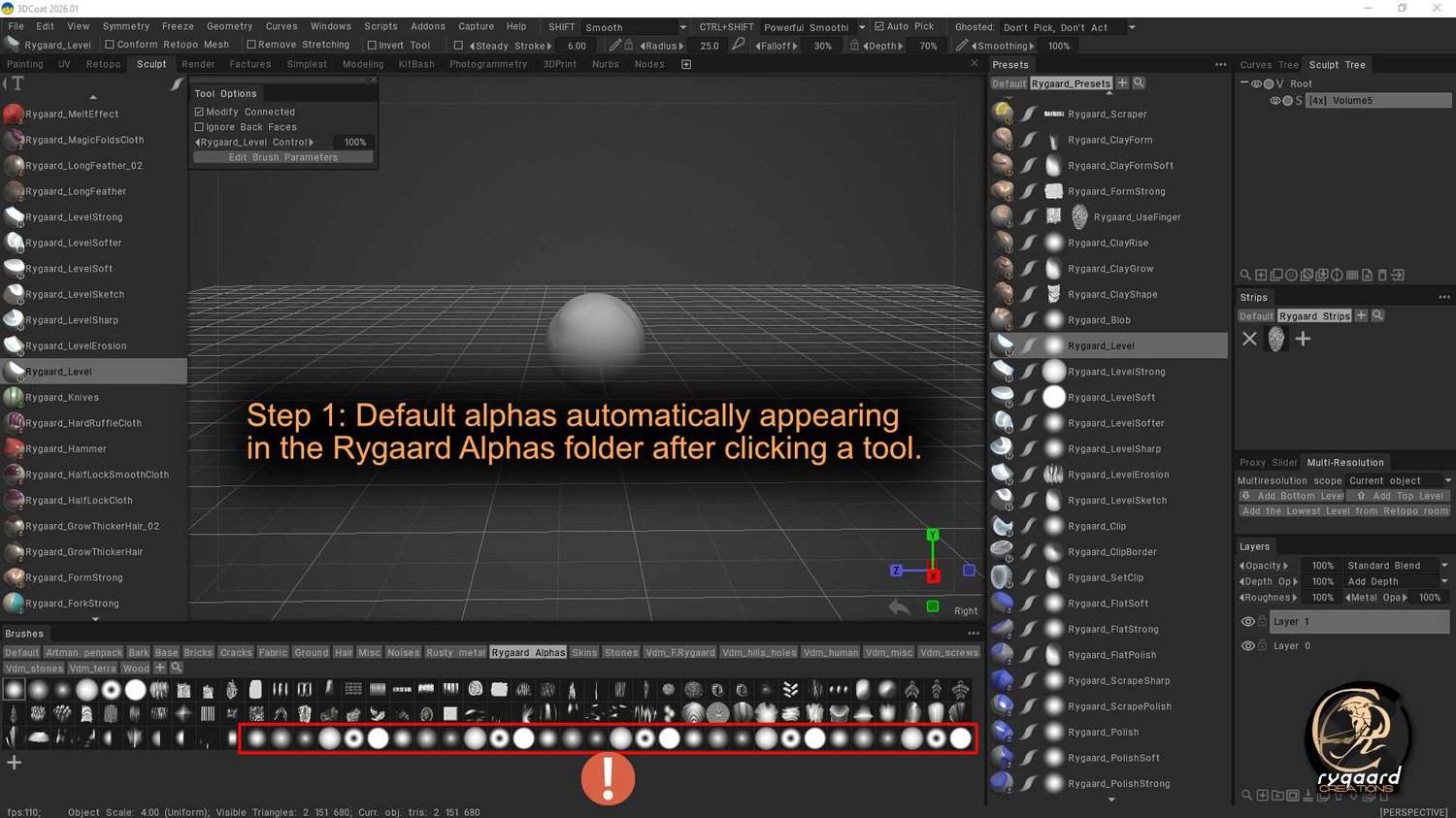
When you click on any brush inside the Preset palette or the left-hand tool column, 3DCoat might automatically inject its 6 default factory alphas into the Rygaard Alphas folder. This happens repeatedly upon clicking brushes. This is a software UI bug, not an error with this brush pack.
Real-world example:
If you have the "Rygaard_UserFinger" brush (which uses the "Rygaard Strips" folder) and click its preset, the specific error occurs:
As the preset automatically switches from the "default" folder to the "Rygaard Strips" folder within the Strips palette, 3DCoat's 6 default alphas appear in the Rygaard Alphas folder (alphas palette).
Similarly, after using the "Rygaard_UserFinger" brush, if you click another brush preset, another 6 default 3DCoat alphas will appear in the Rygaard Alphas folder (alphas palette) because the system automatically switches back from the "Rygaard Strips" folder to the "Default" folder within the Strips palette.
Therefore, the bug is related to the folder switching within the palette.
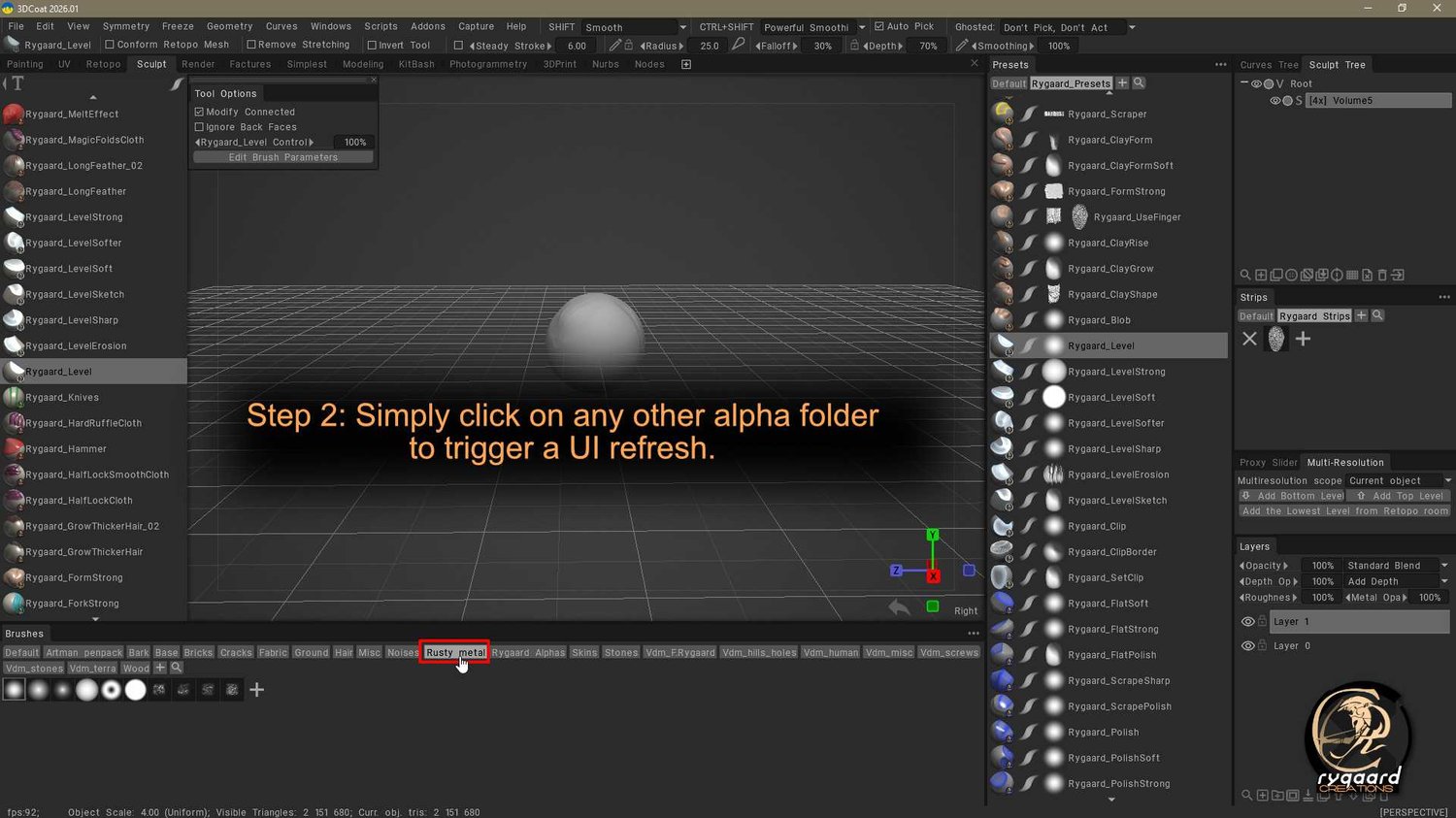
This action forces 3DCoat to refresh the folder. The default alphas will instantly disappear, and your workspace will return to normal.
Step 1: Default alphas automatically appearing in the Rygaard Alphas folder after clicking a tool or specific preset ("Rygaard_UserFinger") as explained regarding the automatic folder switching bug within the 3DCoat palette described above.
Step 2: Simply click on any other alpha folder to trigger a UI refresh.
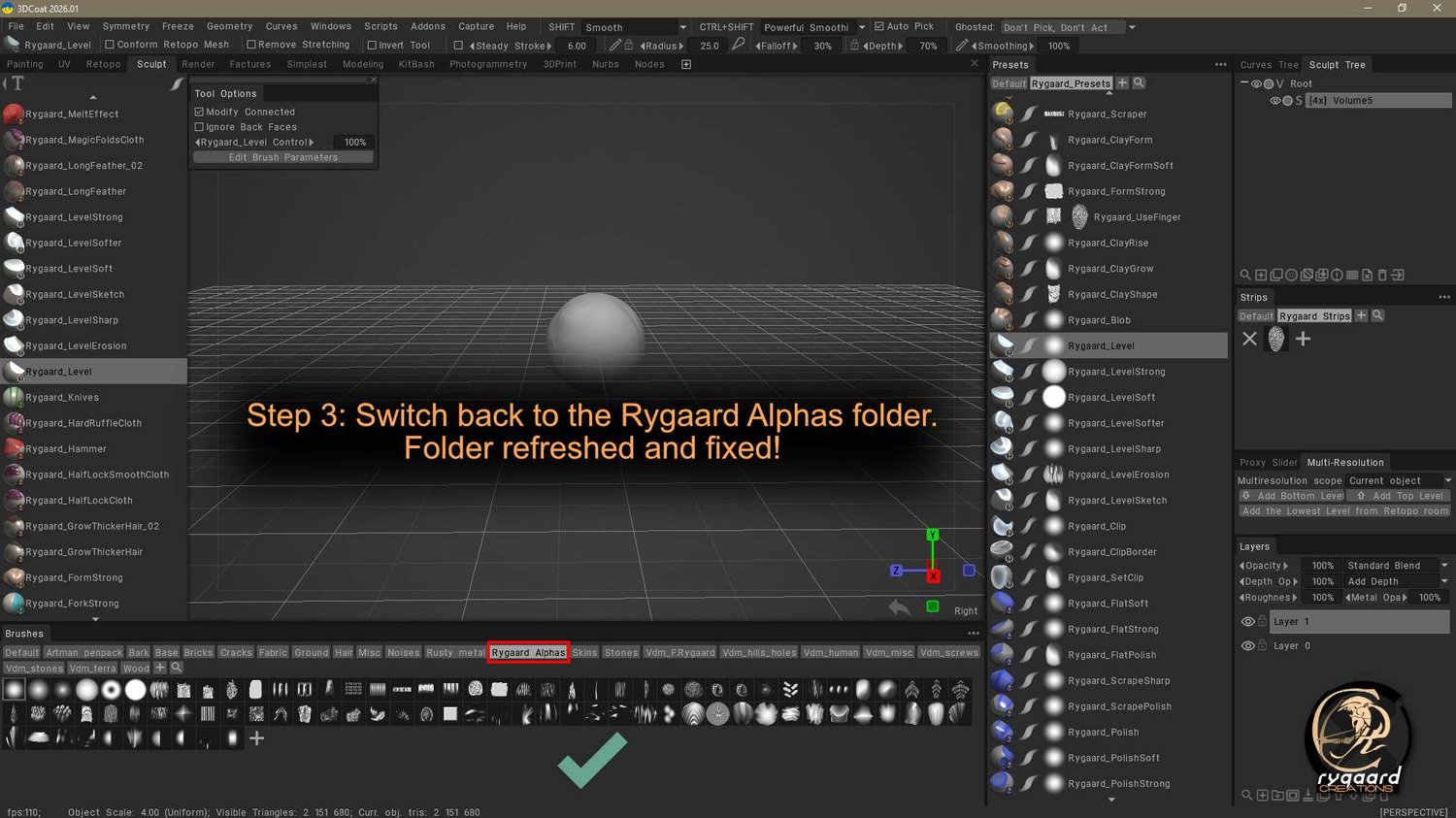
Step 3: Switch back to the Rygaard Alphas folder.
Click the brush preset again to ensure the correct alpha associated with the brush is selected.
Folder refreshed and fixed!